Quest’s Meta Virtual Display Got A New Name, Input Forwarding & Mac Parity
September 8, 2026
The Meta Virtual Display feature of Quest headsets has continued to receive improvements, including input forwarding, and the Mac version now offers the same core functionality previously exclusive to Windows.
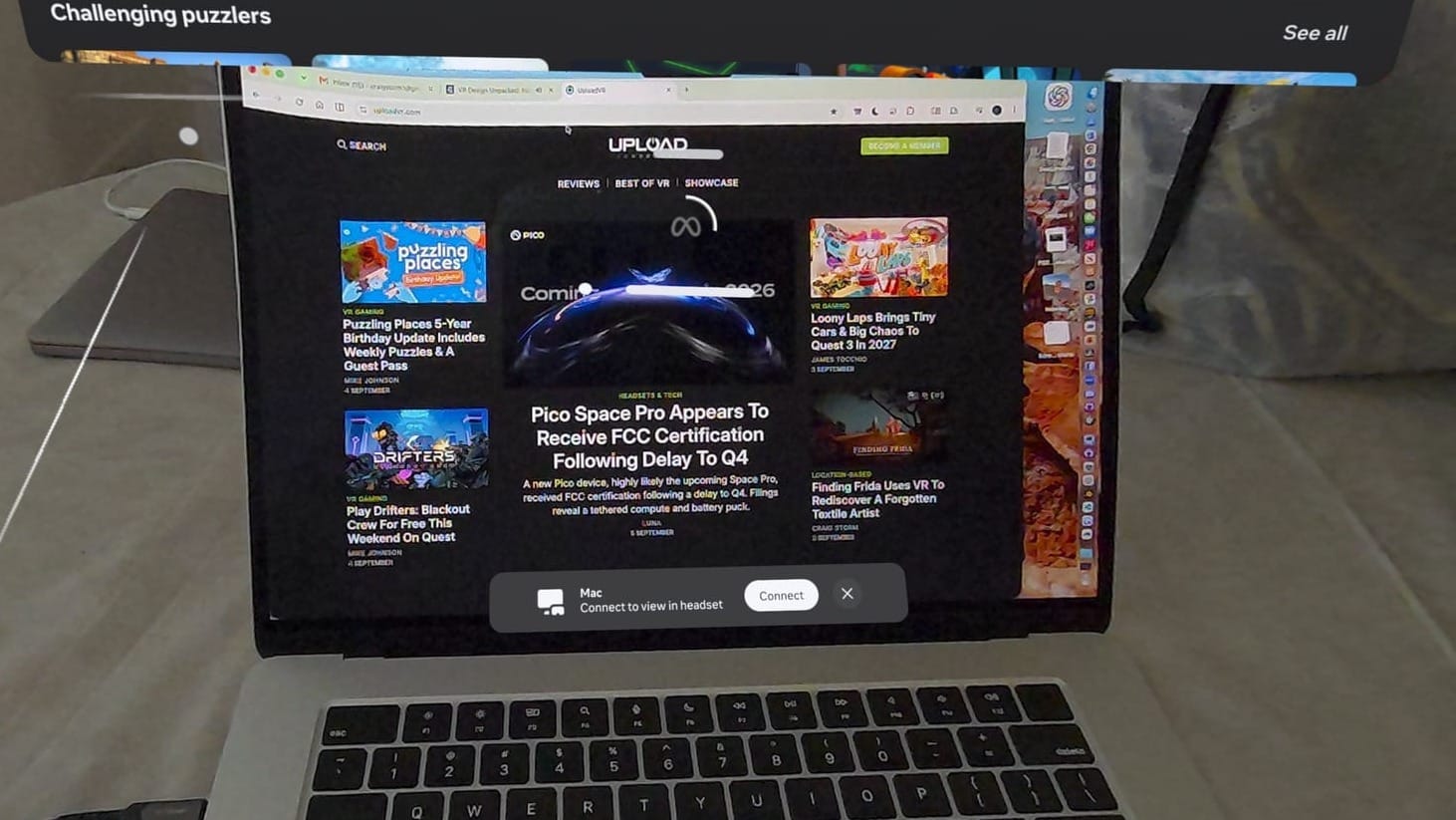
While using my MacBook with Quest, I recently noticed a connection prompt I had previously only seen with Windows. Looking directly at the physical Mac now brings up a floating “Connect to view in headset” button, letting me start a Virtual Display session without first opening the app and selecting the computer manually.
UploadVR previously covered this connection method when Meta introduced it for Windows 11 in late 2024. The headset recognizes the computer you are looking at and places the connection prompt directly over it in passthrough.
That same interaction is now working with my Mac.
Once connected, Virtual Display on macOS also offers the same core display formats Meta previously brought to Windows: Portrait, Compact, Wide, and Ultrawide. There are also Larger text, Default, and More space settings for adjusting how much of the desktop fits inside the virtual display.
Some of these display options had already begun appearing on Mac earlier this year, but Meta has rolled out several Virtual Display improvements with little fanfare and without detailed release notes for every change.
I primarily tested the new features on an M2 MacBook Air, but I also tried Virtual Display on a 2017 27-inch 5K iMac with Intel Core i7 processor, running macOS Ventura. Meta’s previous Remote Desktop app had failed to work properly for me on that iMac for more than a year, but the current Virtual Display app now connects successfully, including the same quick-connect prompt.
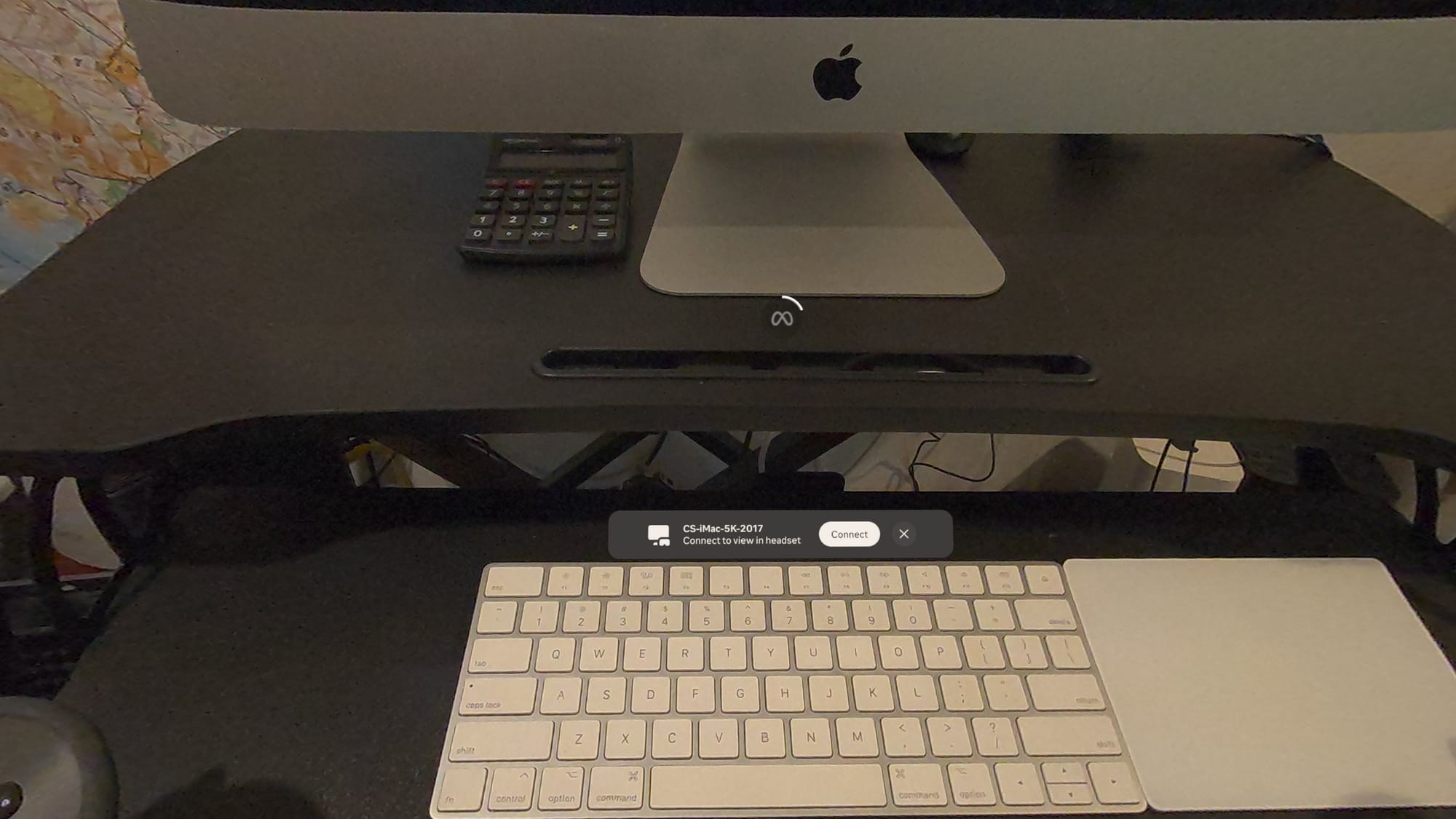
I also tested a 2017 MacBook Pro (Intel Core i5) running Ventura. Virtual Display itself worked, but I could not get the quick-connect prompt to appear on that machine. The current app clearly still supports older Intel Macs, though some features may vary by model.
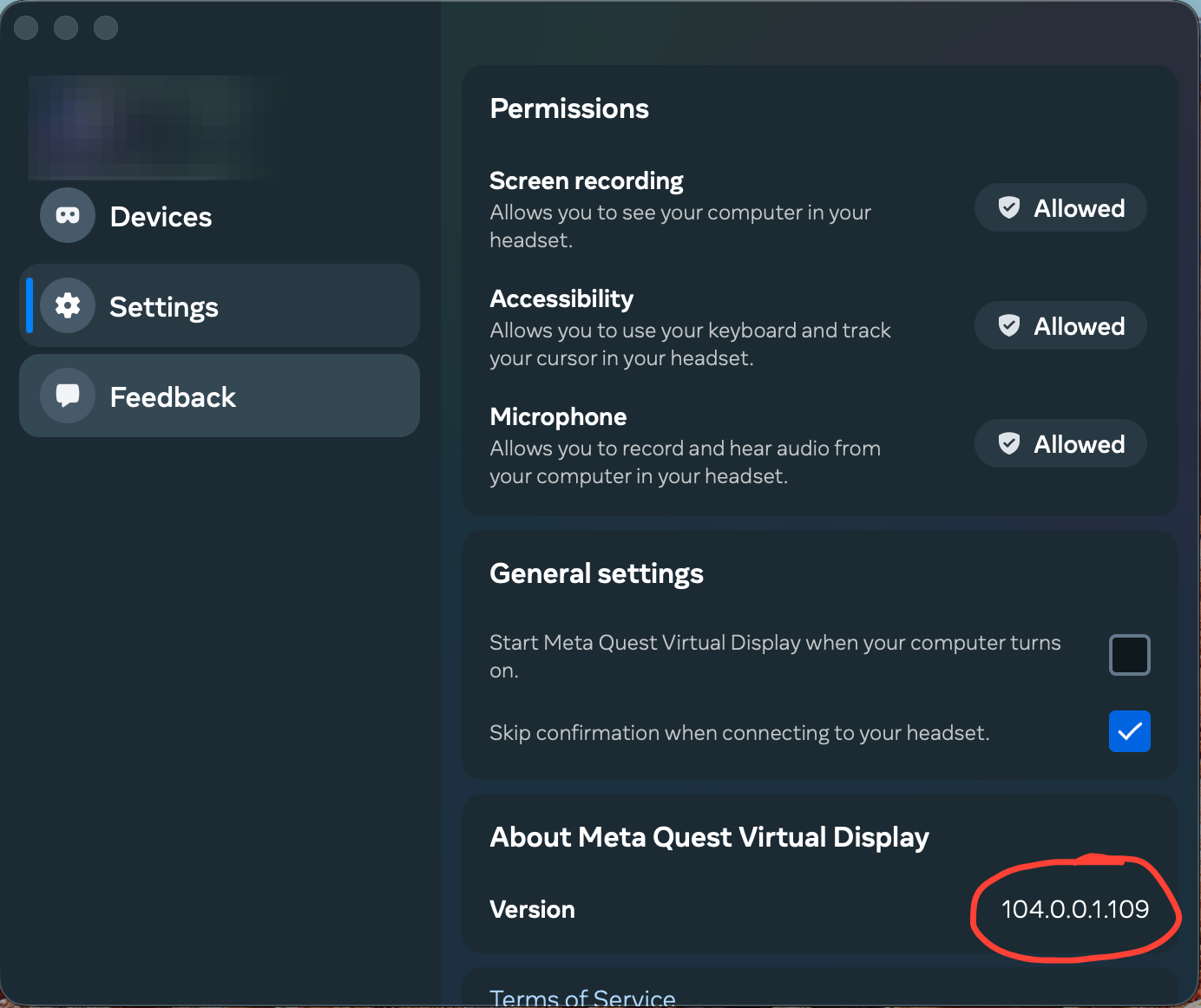
The macOS client I tested is running Meta Quest Virtual Display version 104.0.0.1.109.
Input Forwarding Is Now Available On Windows And Mac
Virtual Display has also gained input forwarding on both Windows and Mac.
Earlier versions of Meta’s remote display system were mainly a way to view your computer inside Quest. Meta support previously described Remote Display as a one-way connection, with Quest controller input unable to control the computer.
That has changed. On both Windows and Mac, Quest input can now control the connected computer.
On my Mac, I can use the Touch controllers to move the cursor and click around macOS inside Virtual Display. Windows users now have the same kind of input forwarding to control their PC.
I did run into one limitation with Virtual Display. The computer’s own mouse or trackpad does not become a general Quest system pointer. On Mac, I can use the MacBook’s trackpad to control the Mac desktop inside Virtual Display, but I cannot move that cursor beyond the virtual Mac screen and use it to control Quest menus or other Horizon OS panels.
As part of my productivity testing, I’ve also been using Fluid, a third-party spatial browser and productivity app for Quest. Fluid lets me pair a Bluetooth mouse directly with the headset and use it to control both the virtual windows inside the app and Horizon OS menus and panels.
That suggests the limitation is with how Virtual Display handles input coming from the computer, rather than a lack of mouse support in Horizon OS itself.
Meta’s Mac client also requests Accessibility permission with the description that it allows you to “use your keyboard and track your cursor in your headset,” but that appears to refer to using those inputs with the Mac desktop rather than controlling Horizon OS itself.
/0:34
Remote Desktop Became Virtual Display
Virtual Display has changed quite a bit over the past year.
Meta officially documented its latest name change with Horizon OS 2.7, which began rolling out the week of August 17. Remote Desktop is now called Virtual Display.
Meta says Virtual Display is automatically installed on Quest headsets and supports Windows and Mac computers with up to three large virtual screens.
The new name also fits the feature better now that computers are no longer the only devices it can display.
Horizon OS 2.7 also folded the functionality of Meta Quest HDMI Link into Virtual Display. With a compatible HDMI-to-USB-C capture solution, devices such as gaming consoles, handhelds, and phones can be displayed on a large virtual screen inside Quest.
Meta says support for the standalone HDMI Link app will eventually wind down, while HDMI functionality will continue through Virtual Display.
UploadVR covered HDMI Link when Meta originally launched it as a separate app in 2024, and more recently covered its move into Virtual Display as part of Horizon OS 2.7.
Meta now has one first-party app for displaying Windows PCs, Macs, and external HDMI devices inside Quest.
Mac Now Has The Core Windows Features
Windows has generally received Meta’s newest remote desktop features first.
UploadVR covered the Windows connection experience in 2024, followed by expanded display formats in 2025. Compact uses a standard 16:9 layout, Wide expands that to 21:9, Portrait turns the display vertically, and Ultrawide creates a large curved workspace.
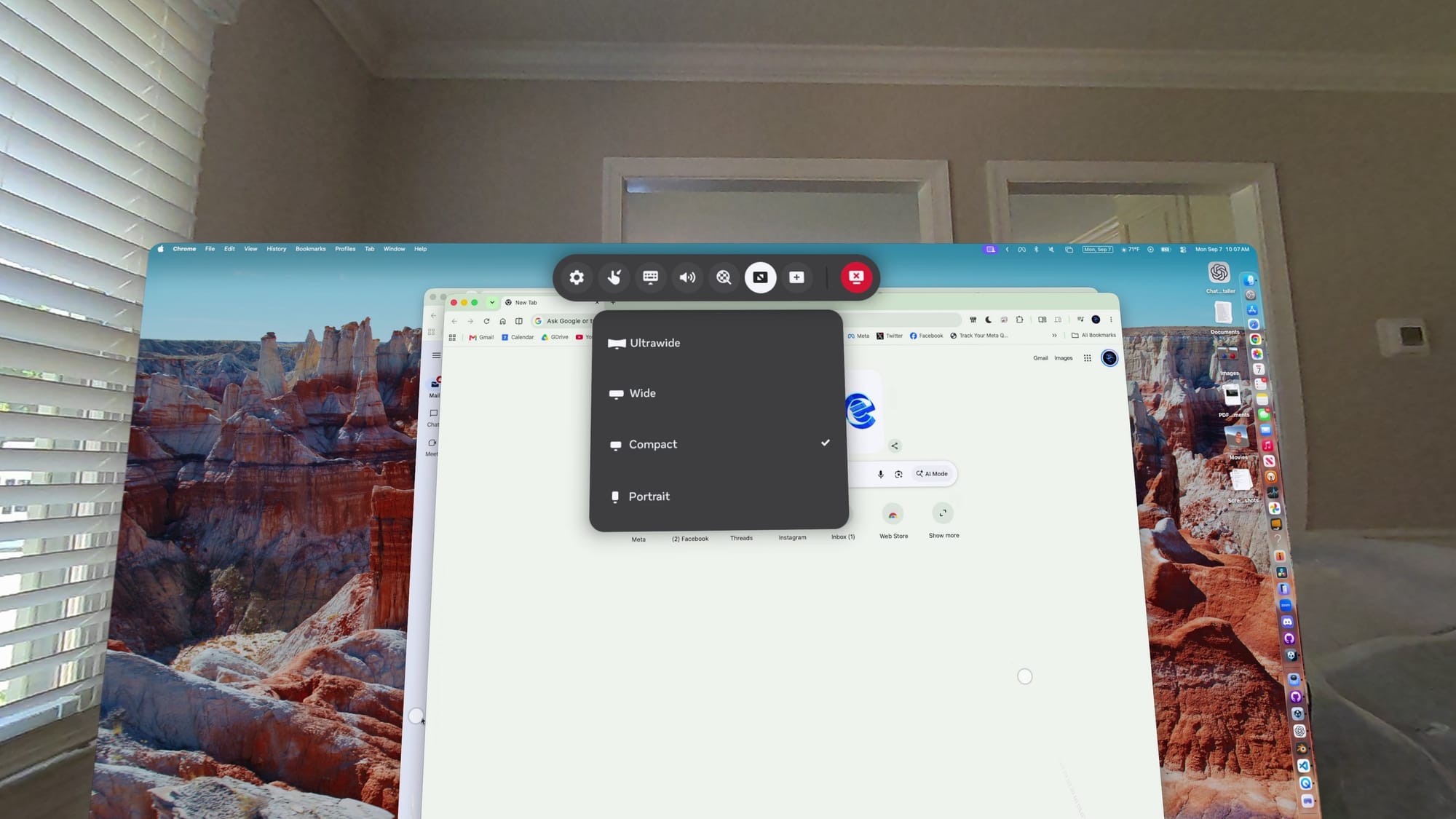
The macOS version has gradually picked up those same core capabilities.
The new quick-connect prompt removes one of the remaining differences I noticed between Mac and Windows versions. Instead of launching Virtual Display and finding the Mac in a device list, I can now simply look at my MacBook and connect from the prompt floating directly over it.
Windows 11 and macOS still use different connection software, with Windows relying on Microsoft’s Mixed Reality Link while macOS uses Meta Quest Virtual Display. But for the main Virtual Display experience, macOS now has the same display formats, multi-monitor support, and seamless connection flow that Meta previously introduced on Windows.
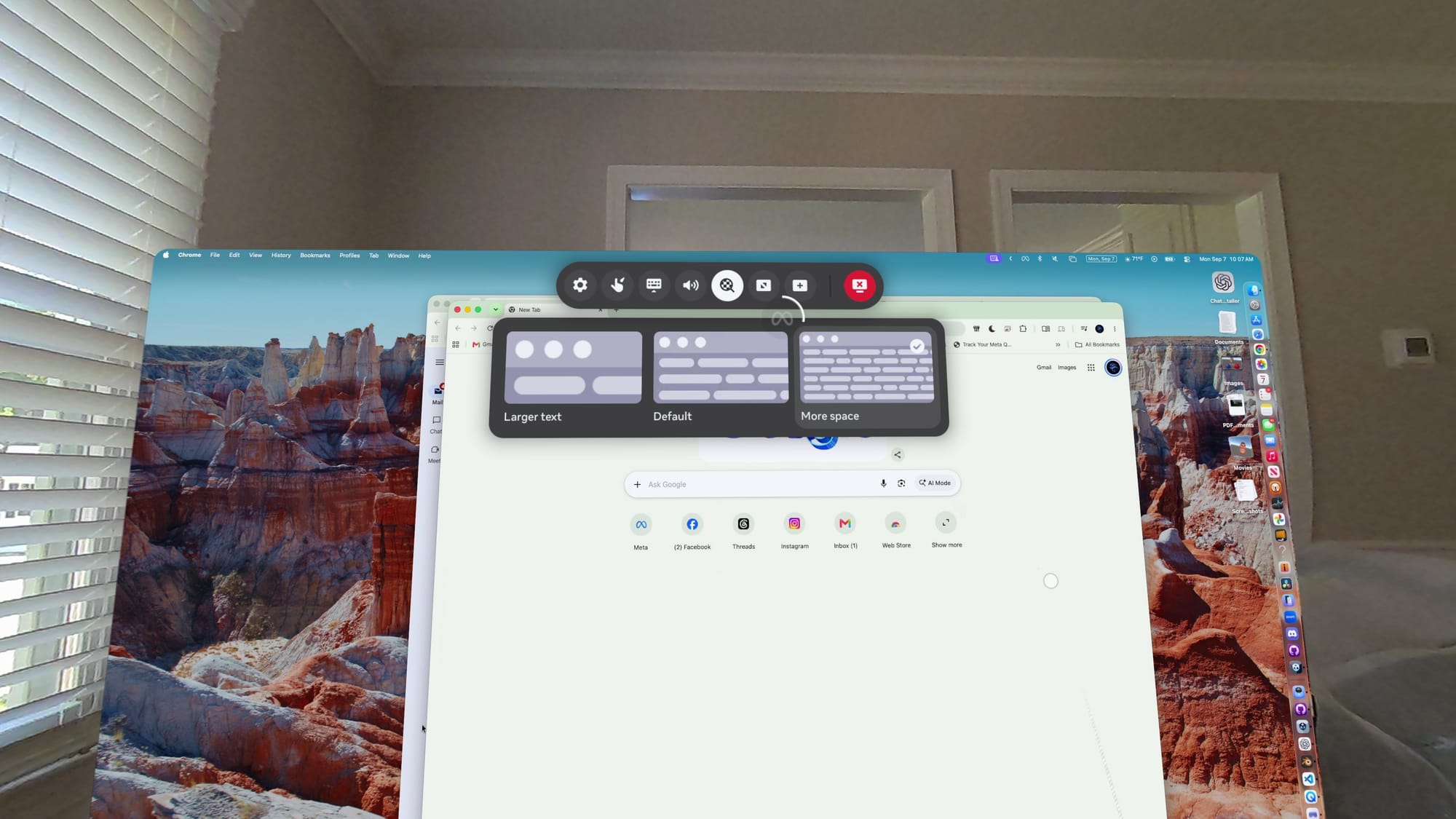
There are still some rough edges, particularly around input. I would like to see Meta eventually let a MacBook trackpad move freely between the computer desktop and Quest’s own interface rather than treating them as separate input environments.
Virtual Display does a lot more than it did when UploadVR last looked closely at the feature. It can now display Windows PCs, Macs, and external HDMI devices, with multiple screen formats and more capable input support all handled through the same Quest app.
With the same quick-connect prompt now working on macOS, there are fewer practical differences between the Mac and Windows versions than before.
Search
RECENT PRESS RELEASES
Related Post